
To verify an iOS app written by AI, work in a loop: Claude Code edits the code, and you run it in VS Code with a single key. Run Claude Code in the VS Code terminal, open your Xcode project with the free KXApp extension, and after each change press ⌘R to build and run on the Simulator or an iPhone. Compile errors land in the Problems panel, ready to paste back to the AI; when the app misbehaves, set a breakpoint and inspect the variables. The whole loop happens in one window. Current as of October 2026, for Xcode 16 and later.
Before you start: Xcode is installed on your Mac and has been opened at least once, and Claude Code is installed and signed in (running claude in the terminal starts a conversation). If you haven’t installed the extension yet, follow the install page.
What does the workflow for an AI-written iOS app look like?
| Step | Who | Where |
|---|---|---|
| Describe the change | You | Claude Code conversation |
| Read and edit the code | Claude Code | Project files |
| Review the changes | You | VS Code editor, diff in the Source Control view |
| Build and run on the Simulator or an iPhone | You press ⌘R | KXApp extension |
| Feed compile errors and runtime output back to the AI | You | Problems panel, kxapp Console → Claude Code |
| Confirm the logic with breakpoints | You | VS Code Run and Debug view |
Step 1: How do I open the project and Claude Code in VS Code?
- Choose File › Open Folder… and open the directory that contains your
.xcodeprojor.xcworkspace. The Xcode Project view appears on the left. - Press ⌃
to open the integrated terminal and runclaude`. You can also use the Claude Code extension for VS Code and chat in the sidebar. - Pick a scheme and a run destination in the status bar.
Step 2: How do I give the AI some project context?
Put a CLAUDE.md (or AGENTS.md) at the project root with a few lines about your conventions; the AI reads it every session. For example:
1# Project notes
2- iOS 17+, SwiftUI + SwiftData, Swift 6 strict concurrency
3- The developer builds and runs with ⌘R in VS Code; do not modify .xcodeproj / project.pbxproj
4- Put new files under App/Features/<FeatureName>/
5- After a change, list the files you touched and how to verify it
Saying “don’t touch the project file” keeps the AI from hand-editing project.pbxproj and breaking it. In projects that use folders (the Xcode 16+ default), any new file dropped into a folder is compiled automatically.
Step 3: How do I verify the AI’s changes with ⌘R?
- Describe what you want in Claude Code, for example “add a dark mode toggle to the settings screen and store it in UserDefaults”.
- When the AI is done, review the changed files and the diff in VS Code.
- Press ⌘R. The extension builds, installs and launches the app, and you see the result on the Simulator or your iPhone right away.
Every time you want to see the effect of a change, it’s one press of ⌘R.
Step 4: How do I feed errors and output back to the AI?
- Compile errors: the Problems panel lists each error with its line. Select and copy them, paste them into Claude Code, and ask it to fix them.
- Runtime output: your app’s
print/NSLogoutput appears under Output › kxapp Console. Copy the relevant lines for the AI. - Build log: for the full details, look at Output › kxapp Build.
Step 5: How do I confirm the AI’s logic with breakpoints?
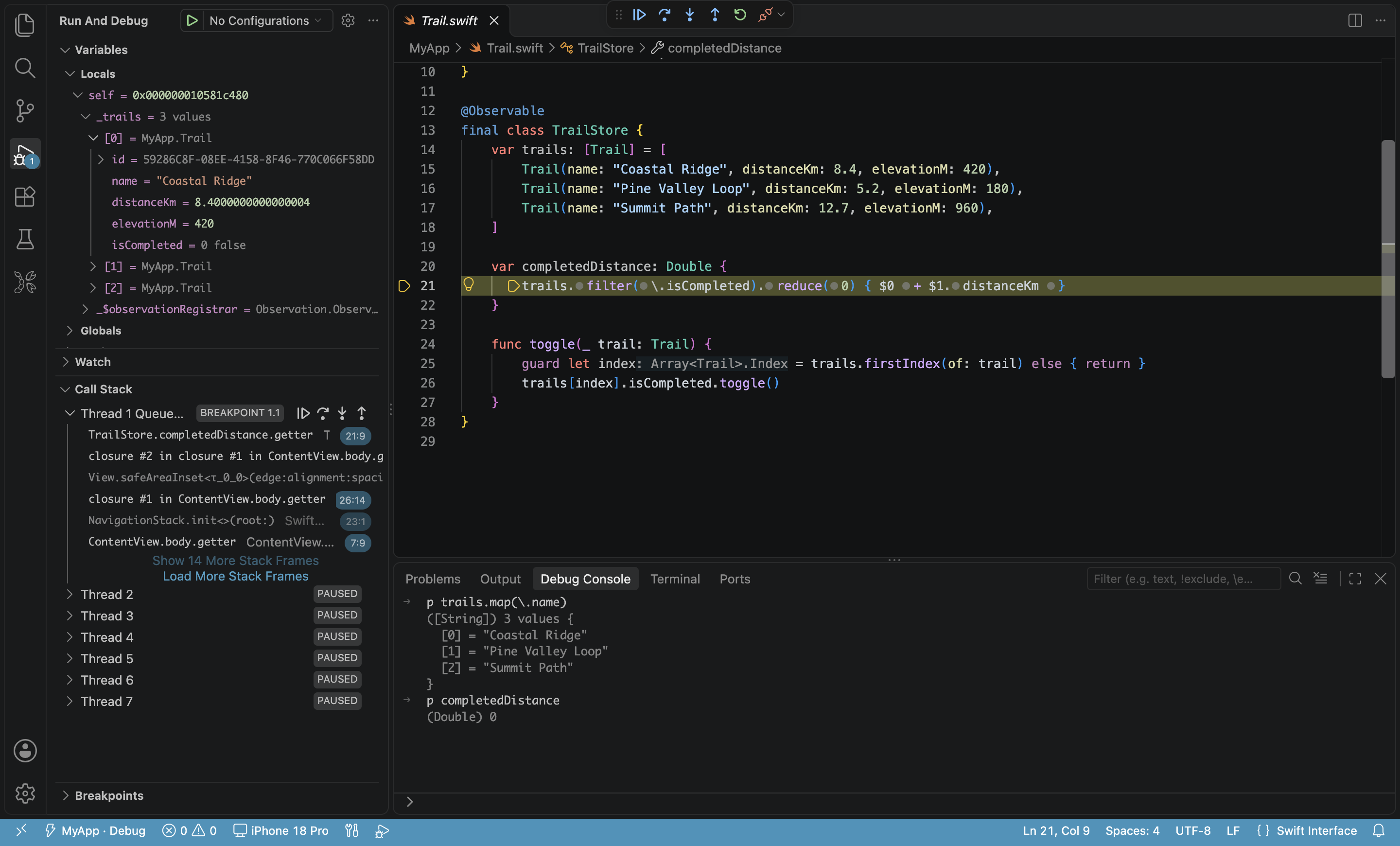
Code that compiles isn’t necessarily correct. Set breakpoints on the key lines and press ⌘R; when execution stops, inspect variables in the Run and Debug view, use po in the Debug Console to print objects if needed, and tell the AI what you saw.
Claude Code or the agents built into Xcode?
Starting with Xcode 26.3, Xcode also ships built-in coding agents such as Claude and Codex. If you already write code in Xcode every day, use those. If you already use Claude Code or Copilot in VS Code or Cursor for other projects, running Claude Code for iOS development in VS Code keeps your iOS projects in the same editor with the same AI setup, while building, signing and debugging still go through your installed Xcode, so the results are identical. Both approaches work on the same project, and you can switch any time.
FAQ
Can Claude Code build and run the app on its own?
It can call build commands from the terminal, but the output is long and it can’t see the UI. It’s simpler to let the AI edit the code while you press ⌘R, then report errors and behavior back to it.
What if a Swift file the AI created isn’t found at compile time?
Check how the project is organized and write it into CLAUDE.md. In a project that uses folders, have the AI put new files in the right folder and they compile automatically. In an older project that uses groups, have the AI list the new files so you can add them to the target in Xcode. The difference is explained in using VS Code and Xcode together.
Does this work in Cursor too?
Yes. In Cursor, search for kxapp in the Extensions view to install the extension, then use Cursor’s built-in AI or run Claude Code in its terminal.
How do I keep the AI from breaking the project file?
Say in CLAUDE.md that project.pbxproj must not be modified, and change project settings, Info.plist and app icons yourself with the extension’s visual editors. Review the diff in the Source Control view before you commit.