
Yes, Cursor can build iOS apps. Cursor iOS development needs a Mac with Xcode installed plus the free KXApp extension in Cursor. Once it’s installed, open your Xcode project in Cursor and Swift code completion just works. Press Cmd+R to build and run on a simulator or iPhone, and inspect variables when a breakpoint hits. When Cursor’s AI changes your code, you verify it with Cmd+R in the same window instead of switching back and forth to Xcode. Current as of October 2026, for Xcode 16 and later.
Before you start: Xcode is installed on the Mac and has been opened once (so its components are installed), and xcode-select -p in Terminal prints a path inside Xcode.app.
Step 1: How do you install KXApp in Cursor?
Cursor gets its extensions from Open VSX. Open the Extensions view (Cmd+Shift+X), search for kxapp and install KXApp.
If the search comes up empty or your network is restricted, download kxapp.vsix from the install page and choose Install from VSIX… in the “…” menu at the top right of the Extensions view. Everything after that works exactly as in VS Code.
Step 2: How do you open an Xcode project in Cursor?
Use File › Open Folder… and pick the folder that contains your .xcodeproj or .xcworkspace (the project can sit in a subfolder). Once the project is detected:
- The Xcode Project view appears in the activity bar, listing schemes, build configurations, the run destination, devices and simulators.
- The status bar shows the scheme, the run destination and a build button.
CocoaPods projects open the .xcworkspace automatically. Nothing gets converted, and teammates who open the same project in Xcode aren’t affected.
Step 3: Does Swift in Cursor get code completion?
Yes. Open a .swift file and type . for the completion list; F12 goes to a definition, hovering shows docs and errors are marked live. SwiftUI and Objective-C work the same way.
The first time you open a project, the extension runs one build in the background, and completion for third-party libraries such as Swift packages and CocoaPods arrives when it finishes. After that, completion follows the current scheme and run destination and matches Xcode. If completion doesn’t appear, see the code completion guide.
Step 4: How do you run an Xcode project from Cursor on a simulator or iPhone?
- Click the scheme in the status bar and pick the app to run.
- Click the run destination and pick a simulator or an iPhone connected by cable.
- Press Cmd+R. The extension builds, installs and launches the app, then attaches the debugger.
| Shortcut | What it does |
|---|---|
| Cmd+R | Build and run (with the debugger) |
| Cmd+B | Build; errors go to the Problems panel |
| Cmd+. | Stop |
Cmd+R and Cmd+B only apply while the editor has focus and an Xcode project is open, and Cmd+R doesn’t work during a debug session (press Cmd+. first). If nothing happens, click in the code area, or click Build & Run in the Xcode Project view’s title bar (the wrench icon in the status bar is Build, which compiles without running). Before first using an iPhone, it has to trust the Mac, have Developer Mode on, and you need to be signed in to Xcode with an Apple ID; see run an iOS app on your iPhone.
Step 5: How do you debug Xcode projects with breakpoints in Cursor?
Click to the left of a line number to set a breakpoint, then press Cmd+R. When it hits, the Run and Debug view shows variables, the call stack and threads; type po self in the Debug Console to print an object. Conditional breakpoints and logpoints work too. The app’s print / NSLog output is in Output › kxapp Console.
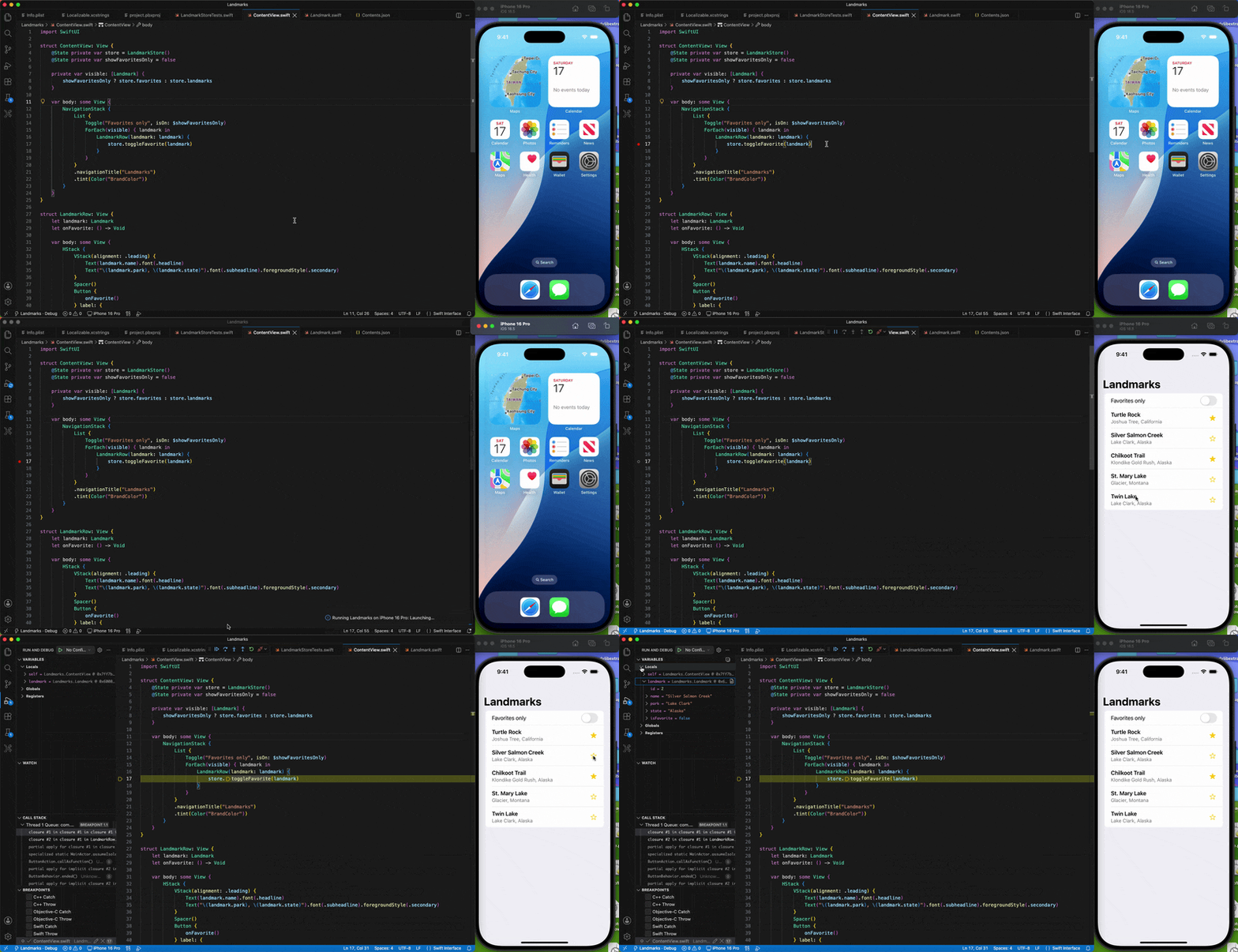
For more debugging techniques, see debug Swift code; device settings are in iOS device debugging.
How does Cursor iOS development work with the AI?
Go from “AI edits the code” to “run and verify” in one window:
- Describe the change in Cursor’s chat or Agent panel and let the AI edit the code.
- Review the diff and press Cmd+B to build. Compile errors land in the Problems panel, and you can hand them back to the AI to fix.
- Press Cmd+R to run on the simulator or iPhone (press Cmd+. first if the last debug session is still running), and set breakpoints to confirm the behavior.
- When needed, paste the logs from Output › kxapp Console into the chat to help the AI pinpoint the problem.
During Cursor iOS development you also don’t have to leave Cursor to edit Info.plist, app icons, localization or Build Settings: open those files and they appear as visual editors, see the visual editors guide. Interface Builder, Instruments and archiving for upload still happen in Xcode; it’s the same project, so you can switch at any time.
FAQ
Do I still need Xcode for iOS development in Cursor?
Yes. The extension builds, signs and debugs with the Xcode installed on your Mac, which is why results match Xcode. Once it’s set up, daily coding, running and debugging can all happen in Cursor.
What if kxapp doesn’t show up in Cursor’s extension search?
Cursor pulls extensions from Open VSX. If the search finds nothing, download the VSIX from the install page and choose Install from VSIX… in the Extensions view’s “…” menu. A VSIX install has to be updated by hand.
Is the extension free? Does it work on Windows?
It’s free and needs no account. It’s Mac-only, because building, signing and installing all use the Mac’s Xcode.
Why doesn’t a new Swift file from the AI get compiled?
In Xcode 16 and later projects organized with folders, new files placed in a folder are compiled automatically. In older projects that use groups, a new file has to be added to the target in Xcode before it’s compiled.