
To debug Swift code in VS Code you need no debug configuration once you install the free KXApp extension: pick a simulator or iPhone, set a breakpoint next to a line number and press Cmd+R. When a breakpoint hits, variables, watch expressions and the call stack are in VS Code’s Run and Debug view, the Debug Console accepts lldb commands such as po and bt, and the app’s print output goes to Output › kxapp Console. This guide covers the actions you’ll use most while debugging, one by one. Current as of October 2026, for Xcode 16 and later.
Before you start: Xcode is installed on the Mac, the extension is installed in VS Code and an Xcode project is open; see the build iOS apps in VS Code quick start.
How do you set a breakpoint and start debugging Swift code in VS Code?
- Click to the left of a line number; a red dot means a breakpoint is set. Swift, Objective-C, C and C++ all work.
- Pick the scheme and run destination (simulator or iPhone) in the status bar.
- Press Cmd+R (or F5): the extension builds, installs and launches the app, then attaches the debugger.
- When a breakpoint hits, step with the debug toolbar: Continue (F5), Step Over (F10), Step Into (F11), Step Out (Shift+F11).
- Press Cmd+. to stop debugging.
Restart on the debug toolbar doesn’t relaunch the app; it shows a message pointing you to Build & Run, which you can click right there. After changing code you can also press Cmd+. to stop and then Cmd+R (Cmd+R doesn’t work while a debug session is running), or click Build & Run in the Xcode Project view’s title bar.
How do you set conditional breakpoints and logpoints?
Right-click a breakpoint and choose Edit Breakpoint…, or right-click to the left of a line number and choose Add Conditional Breakpoint…:
| Type | What to enter | Effect |
|---|---|---|
| Conditional breakpoint (expression) | A boolean expression such as index == 42 or name == "admin" |
Stops only when the condition is true |
| Hit count | A number such as 10 |
Starts stopping on the 10th pass (and every pass after that) |
| Logpoint | A line of text with variables in {}, such as tapped {item.id} |
Doesn’t stop; prints one line to the Debug Console |
Logpoints are ideal for watching values in loops or scroll callbacks: no print added to your code and no rebuild.
How do you inspect variables, watch expressions and the call stack?
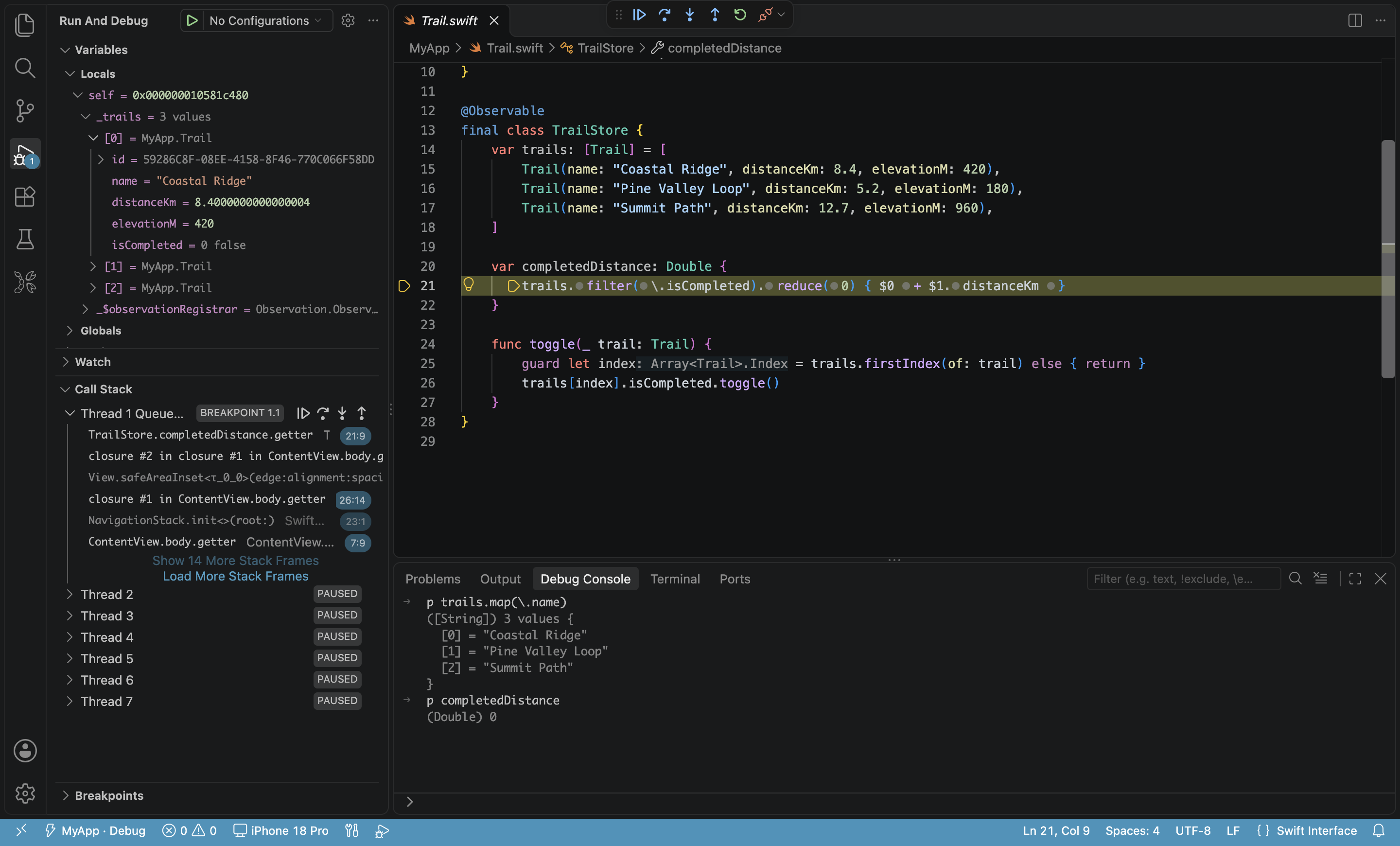
When a breakpoint hits, the Run and Debug view shows:
- Variables: local variables and
selffor the current function; structs, arrays and dictionaries expand. - Watch: click “+” to add an expression such as
items.count; it refreshes every time execution stops. - Call Stack: every thread and its call chain; click a frame to see that frame’s source and variables.
- Breakpoints: every breakpoint, which you can temporarily disable or delete.
You can also hover over a variable in the source to see its value.
How do you use po, p and bt in the Debug Console?
The Debug Console panel accepts lldb commands and expressions:
| Command | What it does |
|---|---|
po self |
Prints the object’s description (same as in Xcode) |
p count |
Prints a variable’s value and type |
v or frame variable |
Lists every local variable in the current frame |
bt |
Prints the current thread’s call stack |
po someFunction() |
Evaluates an expression and prints the result |
When you evaluate an expression with no return value, the console may report that it failed even though the call actually ran. That’s known debugger behavior.
Where does print output go when you debug Swift code?
The app’s print and NSLog output goes to the kxapp Console channel of the Output panel (pick it in the drop-down at the panel’s top right). It works the same on devices and simulators, and output from Run Without Debugging lands there too. Build logs are in the kxapp Build channel.
When you debug a SwiftUI project on the simulator, the Console also fills with Xcode preview logs (tagged [PreviewsAgentExecutorLibrary]). Use the Output panel’s filter box to show only your own logs; Run Without Debugging doesn’t produce these logs.
How do you attach to an app that’s already running?
To debug an app already running on the device without restarting it, run “Attach to Running App…” from the Command Palette and pick from the list of apps (simulators show the process name and pid, such as HelloKX 54187; devices also show the bundle id). The app keeps running after you detach.
How do you pass launch arguments and environment variables with launch.json?
To pin a scheme or device, or pass launch arguments and environment variables to the app, add a configuration of type kxapp to .vscode/launch.json:
 1{
 2  "version": "0.2.0",
 3  "configurations": [
 4    {
 5      "type": "kxapp",
 6      "request": "launch",
 7      "name": "kxapp: Build & Run (with arguments)",
 8      "build": true,
 9      "args": ["-UITesting"],
10      "env": { "API_BASE_URL": "https://staging.example.com" }
11    }
12  ]
13}
You can also set scheme, configuration and device (the UDID or name of a simulator or device). Anything you leave out uses the current selection. See the run and debug guide for every field.
How do you keep the app running after you stop debugging?
When you debug Swift code in VS Code, stopping the session ends the app by default, the same as Xcode. To leave the app running on the device, turn off kxapp.debug.killAppOnStop in settings.
FAQ
Why does the debugger stop in main or UIApplicationMain as soon as the app runs?
Usually the app crashed or threw an uncaught exception, and the debugger stopped at the outermost frame. Look for frames from your own code in the Call Stack, then check the last lines of Output › kxapp Console for the error. To stop where the exception is thrown, check the matching exception breakpoint (such as Objective-C Throw or Swift Throw) in the Breakpoints view and run again.
Why is my breakpoint gray and never hit?
Make sure you’re using the Debug build configuration and that the line actually runs. After changing code, press Cmd+. to stop and Cmd+R to rebuild; Restart on the debug toolbar doesn’t recompile.
Why is the first debug session on a device so slow?
After a phone updates its OS, connect it once in Xcode’s Window › Devices and Simulators and wait for Xcode to finish preparing it. The first time a phone on a given iOS version is debugged on this Mac, it also goes through “Preparing device support” (copying device symbols, about a minute and several GB of disk) before stopping at a breakpoint. After that, breakpoints hit within a dozen seconds or so.
Why does nothing happen when I type a command in the Debug Console?
First make sure the program is paused at a breakpoint (expressions can’t run while it’s running). If a command is being parsed as an expression, prefix it with a backtick, such as `bt, to run it as an lldb command.