
The fastest way to run an iOS app on your iPhone is to turn “build, install, launch” into a single key: Cmd+R in Xcode, and Cmd+R in VS Code once you add the free KXApp extension. Connect the phone to your Mac with a cable and handle trust, Developer Mode and signing the first time. After that, every change is one keypress away from running on the phone, and breakpoints stop right there. No exporting an IPA and installing it with another tool. Below: first-time setup, everyday running and debugging, and fixes for common errors. Current as of October 2026, for Xcode 16 and later.
Why not debug by exporting an IPA and installing it?
| Approach | What each code change takes | Breakpoint debugging? |
|---|---|---|
| Archive → export IPA → install with another tool | Archive, pick export options, wait for the export, switch tools to install, open the app by hand | No |
| Xcode Cmd+R | One keypress | Yes |
| VS Code + KXApp Cmd+R | One keypress | Yes |
Exporting an IPA is for handing builds to testers (TestFlight, Ad Hoc), not for debugging your own changes. During development, run straight on the connected phone: builds are incremental, so a change usually shows up on the phone within a dozen seconds or so.
What do you need before the first run on an iPhone?
All of this is the same as using a device with Xcode, and you only do it once per phone:
- Connect the phone to the Mac, unlock it and tap Trust in the prompt.
- On iOS 16 and later, turn on Settings › Privacy & Security › Developer Mode on the phone and restart when asked. If the option isn’t there, let Xcode connect to the phone once (next step).
- Open Xcode’s Window › Devices and Simulators and wait for Xcode to recognize and prepare the phone. Do this again after the phone updates its OS, or the first debug session will be very slow.
- Sign in with your Apple ID in Xcode › Settings… › Accounts, then turn on automatic signing and pick a Team under the target’s Signing & Capabilities. A free Apple ID can install on your own phone.
How do you run an iOS app on your iPhone with one key in VS Code?
- Search for kxapp in the VS Code Extensions view and install it, then open the folder that contains your
.xcodeprojor.xcworkspace. - Click the run destination in the status bar and pick your iPhone. The list refreshes within seconds of plugging or unplugging a phone, or click Refresh Devices in the Xcode Project view.
- Press Cmd+R. The extension builds, signs, installs and launches the app, then attaches the debugger.
From then on, change code and press Cmd+R again. Cmd+R doesn’t work while a debug session is running, so press Cmd+. to stop first, or click Build & Run in the Xcode Project view’s title bar. To just install and look without the debugger, use the Run Without Debugging command.
How does iPhone debugging work once the app runs on your phone?
- Click to the left of a line number to set a breakpoint, in Swift or Objective-C.
- When it hits, the Run and Debug view shows variables, the call stack and threads; type
poin the Debug Console to print an object. - Conditional breakpoint: right-click the breakpoint › Edit Condition. Logpoint: prints a line without stopping, handy for values inside loops.
- The app’s
print/NSLogoutput is in Output › kxapp Console. - Cmd+. stops the session and, by default, the app. To keep the app running on the phone, turn off the
kxapp.debug.killAppOnStopsetting. - If the app is already running on the phone, run the “Attach to Running App…” command to attach the debugger.
- The first time a phone on a given iOS version is debugged on this Mac, it goes through “Preparing device support” (copying system symbols from the phone, about a minute and several GB of disk) before stopping at a breakpoint. It’s fast after that.
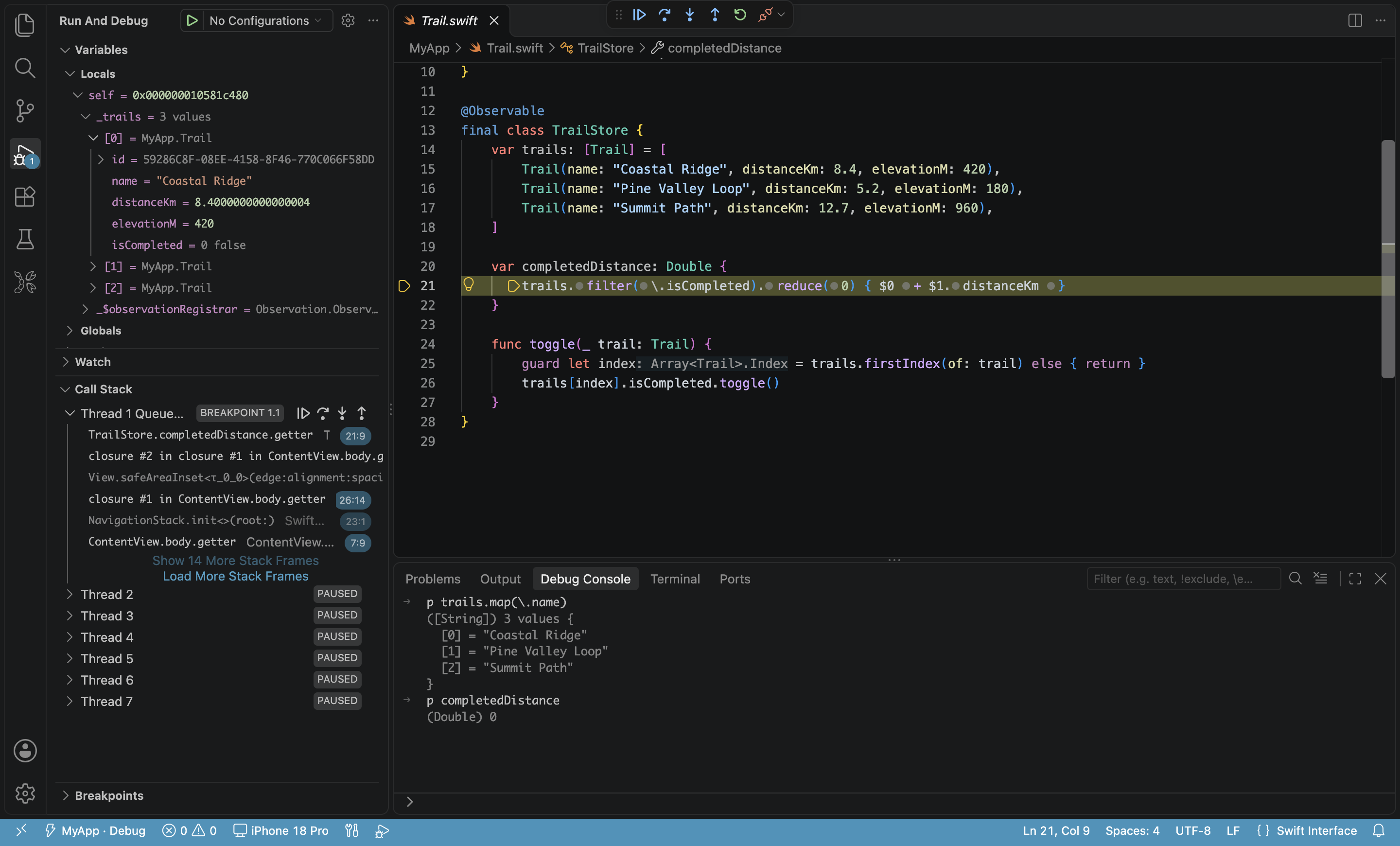
For the full set of conditional breakpoints, logpoints and Debug Console commands, see debug Swift code; debugger settings are in the iOS device debugging guide.
What if running on your iPhone fails?
| Symptom | Fix |
|---|---|
| The phone isn’t in the run destination list | Try another cable or USB port, unlock the phone and tap Trust, then click Refresh Devices |
| In the Xcode Project view’s device list, the phone is marked Developer Mode off | Turn on Settings › Privacy & Security › Developer Mode on the phone and restart |
| Run fails because the device is locked | Unlock the phone (enter the passcode) and run again |
| Breakpoints take ages and a “device not prepared” message appears | Connect the phone once in Xcode’s Devices and Simulators and wait for it to finish preparing |
| No profiles for… / Signing requires a development team | Sign in with your Apple ID in Xcode and pick a Team under the target’s Signing & Capabilities |
| The phone says “Untrusted Developer” | Trust your developer account in Settings › General › VPN & Device Management on the phone |
| The app quits immediately or the debugger can’t attach | Check the last lines in Output › kxapp Console; run it once from Xcode to see whether the app itself is the problem |
If you hit something not covered here when you run an iOS app on your iPhone, see Troubleshooting.
FAQ
Can I run on my iPhone over Wi-Fi?
Yes. Connect with a cable once and check “Connect via network” in Xcode’s Devices and Simulators. After that, whenever the phone and the Mac are on the same network, it appears in the run destination list marked Wi-Fi. Wireless debugging is somewhat slower than a cable.
Can I install on my own phone without a paid developer account?
Yes. Sign in to Xcode with a free Apple ID and you can sign and install on your own devices, but the provisioning profile expires after 7 days; just run again when it does. Some capabilities, such as push notifications, need a paid account.
A free account can only register a limited number of devices. When you hit the limit the build fails, and the alert only says the build failed for the project, scheme and Debug configuration. The real reason, “Your development team has reached the maximum number of registered iPhone devices”, only appears in Output › kxapp Build. Whenever a build fails without a clear reason, look there for lines starting with error:.
Does every run rebuild the whole project?
No. Builds are incremental and only recompile changed files. The build cache is also shared with Xcode, so whatever you built in Xcode doesn’t need rebuilding in VS Code.
Why doesn’t the Restart button on the debug toolbar relaunch the app?
The build happens before the debug session starts, so Restart can’t relaunch the app; it shows a message pointing you to Build & Run instead. Click Build & Run in that message. After changing code you can also press Cmd+. to stop, then Cmd+R to build and run again.