
To edit Info.plist in VS Code, install the free KXApp extension and double-click the file. Info.plist, .entitlements and the privacy manifest PrivacyInfo.xcprivacy all open in a property list editor with the same Key / Type / Value table you know from Xcode. Right-click to add rows, add children, delete rows or copy a key path. Saving keeps the file’s original format, so Xcode opens it exactly as before. This guide covers how files open, everyday edits, save formats and the related settings. Current as of October 2026, for Xcode 16 and later.
Before you start: Xcode is installed on your Mac, the KXApp extension is installed in VS Code or Cursor (search for kxapp in the Extensions view, or see the install page), and your Xcode project folder is open.
Which files open in the visual editor?
| File | How it opens |
|---|---|
Info.plist and other .plist files |
Property list editor, editable |
.entitlements |
Property list editor, editable |
.xcprivacy (privacy manifest) |
Property list editor, editable |
.mobileprovision (provisioning profile) |
Read-only, showing the raw keys of the embedded plist: certificates, device list and entitlements |
To see the raw XML, click kxapp: Open plist as Text (the <> icon) in the editor title bar, or use VS Code’s own Open With… › Text Editor.
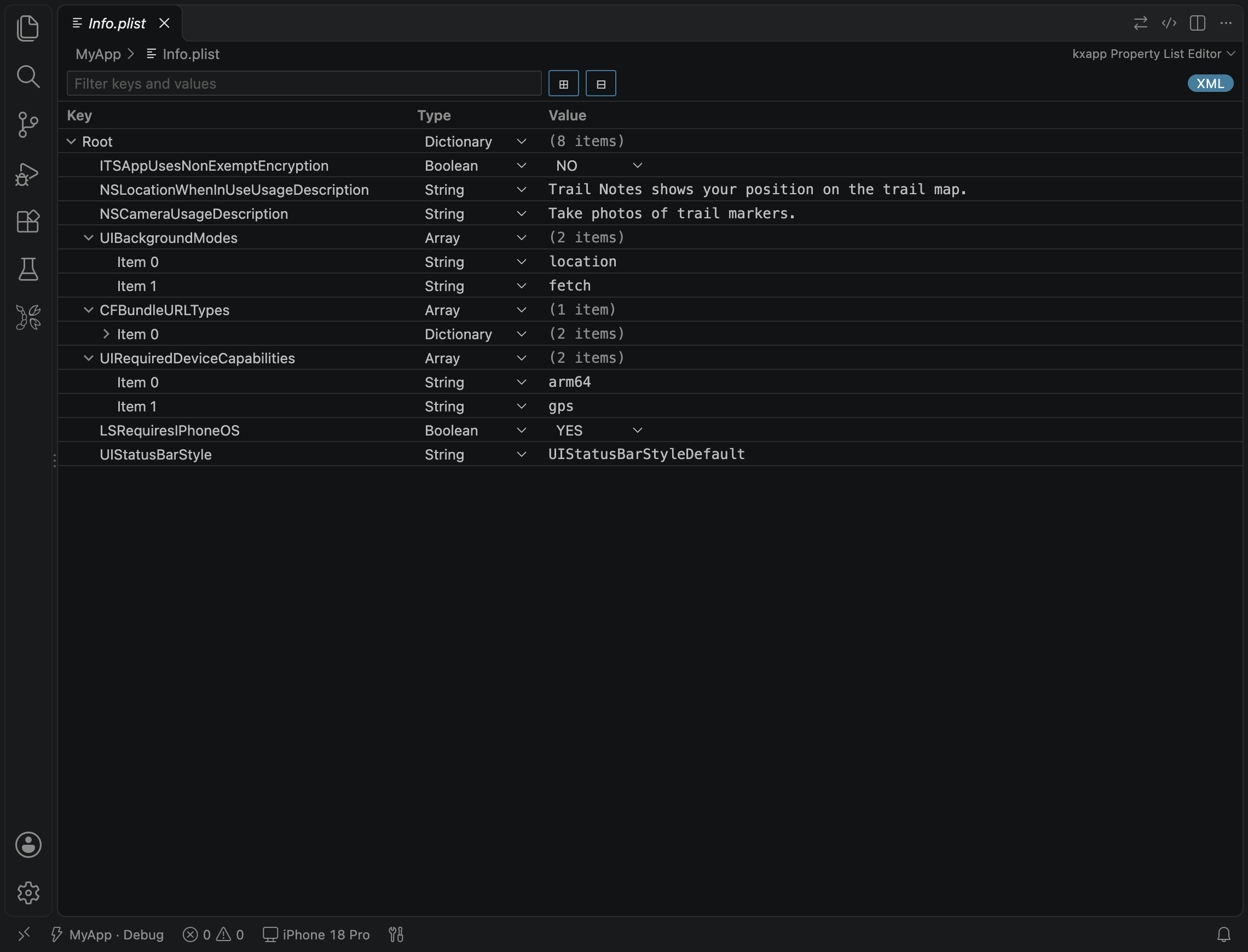
How do you edit Info.plist keys and values in VS Code?
- Change a value: double-click the key or value cell (or select it and press Return or F2). Click the Type column to pick from a dropdown: dictionary, array, string, number, boolean, date, data and more. Booleans are a single click to choose YES or NO. A filter box and Expand All / Collapse All buttons sit at the top.
- Add a key: right-click a row and choose Add Row. To add an item inside a dictionary or array, choose Add Child.
- Delete a key: right-click and choose Delete Row.
- Copy a key path: right-click and choose Copy Key Path, handy for referencing nested keys in code or docs.
The table shows raw key names such as NSPrivacyTracking and NSPrivacyAccessedAPITypes, not the friendly names Xcode displays.
Press ⌘S to save. Only the parts you touched change, so git diff shows exactly what you edited.
Which Info.plist permission keys do most apps need?
Before your app accesses the camera, photo library, location or other protected data, Info.plist must contain a matching usage description, or the app crashes on access. These are the most common ones. Right-click, choose Add Row and type the key name (there is no key autocomplete, so copy it from the table):
| Key | Purpose |
|---|---|
NSCameraUsageDescription |
Use the camera |
NSPhotoLibraryUsageDescription |
Read the photo library |
NSLocationWhenInUseUsageDescription |
Get location while the app is in use |
NSMicrophoneUsageDescription |
Use the microphone |
NSContactsUsageDescription |
Read contacts |
For the full list and requirements, see Apple’s Information Property List documentation.
How do you edit entitlements and privacy manifests?
- Entitlements: open the target’s
.entitlementsfile and add or remove keys the same way, for example the keys behind App Groups or Keychain Sharing. Capabilities also need support from your developer account and provisioning profile; if signing fails, see Troubleshooting. - Privacy manifest: open
PrivacyInfo.xcprivacyand fill in the collected data types, whether you track users, and the required reason APIs with their reason codes. Apple documents every key and reason code in Privacy manifest files.
What format is saved, and which settings apply?
By default the file keeps its original format (XML or binary). To switch, run kxapp: Plist Save Format (XML / Binary) from the Command Palette.
| Setting | Default | What it does |
|---|---|---|
kxapp.plist.defaultSaveFormat |
preserve |
Save format: XML, binary, or keep the original |
kxapp.plist.sortKeysOnSave |
Off | Sort dictionary keys alphabetically on save |
kxapp.plist.showRootRow |
On | Show a Root row above the top-level keys |
kxapp.plist.spacing |
compact |
Row spacing in the table |
Every option for editing Info.plist in VS Code is listed in the settings reference.
FAQ
Can Xcode still open an Info.plist I edited in VS Code?
Yes. The file is saved in its original format and opens in Xcode exactly as before, so you can switch between the two on the same project at any time.
How do I edit the raw XML instead?
Click kxapp: Open plist as Text (the <> icon) in the editor title bar, or use VS Code’s Open With… › Text Editor.
Can I edit a .mobileprovision file?
No. Provisioning profiles open read-only, showing the raw keys of the embedded plist so you can check certificates, included devices and entitlements. To get a new profile, regenerate it in Xcode or on the Apple Developer website.
Does this work in Cursor?
Yes. Search for kxapp in Cursor’s Extensions view and install it; double-clicking these files opens the same visual editor.