
What app icon sizes does iOS need? You no longer need to prepare every iOS app icon size by hand: an iOS app icon now needs just one 1024×1024 image. Install the free KXApp extension in VS Code, open your project’s Assets.xcassets, right-click the app icon and choose Fill All Sizes from 1024×1024 Image…. Pick the image and every slot is filled at once. Image sets and color sets live in the same asset catalog editor, and everything is saved in Xcode’s own format. This guide covers icon generation, single-size icons, @1x/@2x/@3x image sets, color sets and pre-commit checks. Current as of October 2026, for Xcode 16 and later.
Before you start: Xcode is installed on your Mac, the KXApp extension is installed in VS Code or Cursor (search for kxapp in the Extensions view, or see the install page), and your Xcode project folder is open.
How do you open an asset catalog in VS Code?
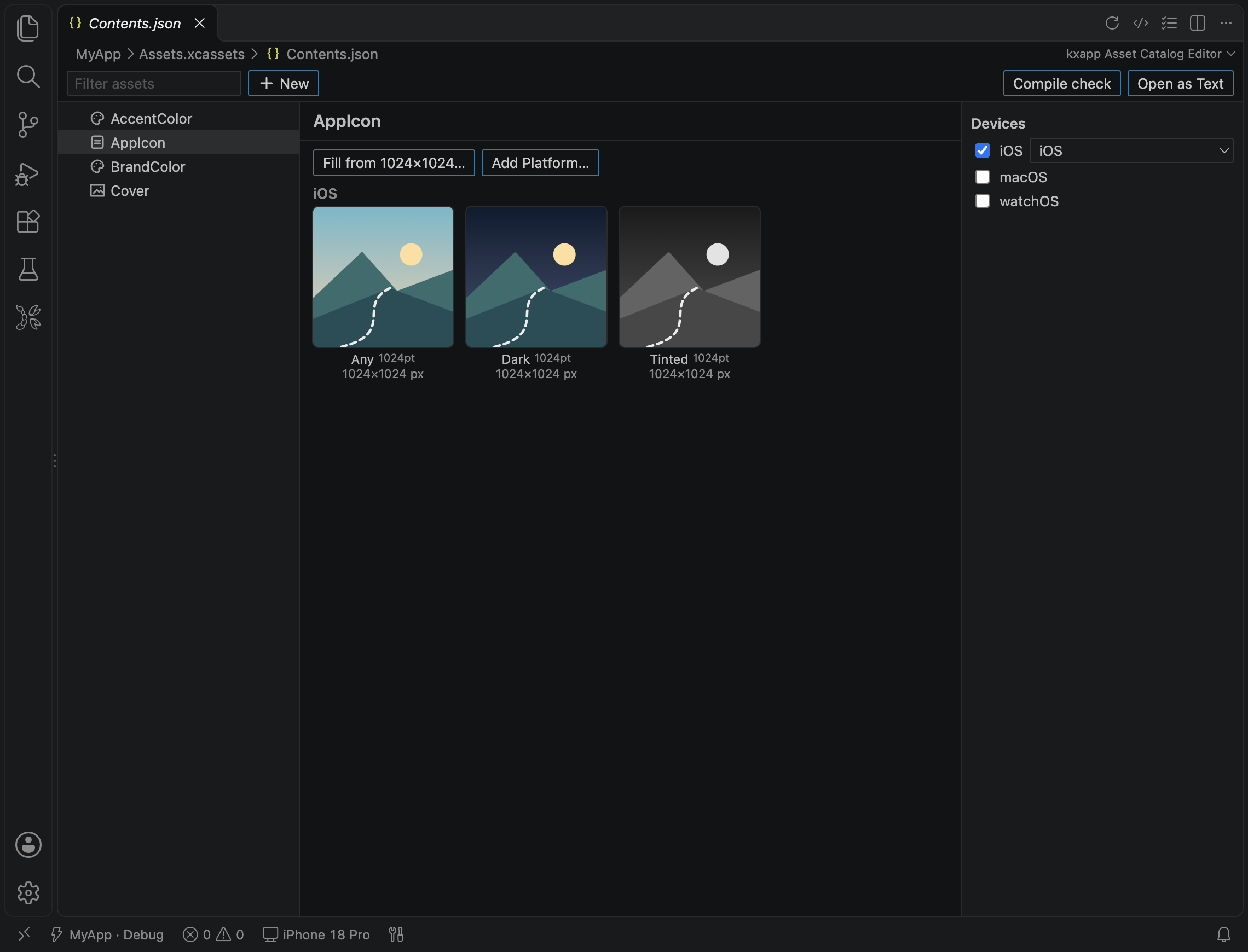
In the Explorer, right-click the Assets.xcassets folder and choose kxapp: Open Asset Catalog, or open the Contents.json inside it (double-clicking Assets.xcassets only expands the folder). The asset catalog editor shows the item tree on the left and the selected item on the right. The toolbar has Filter assets, + New, Compile check and Open as Text; use the last one to see the raw Contents.json.
How do you generate every app icon size from one 1024 image?
- Right-click
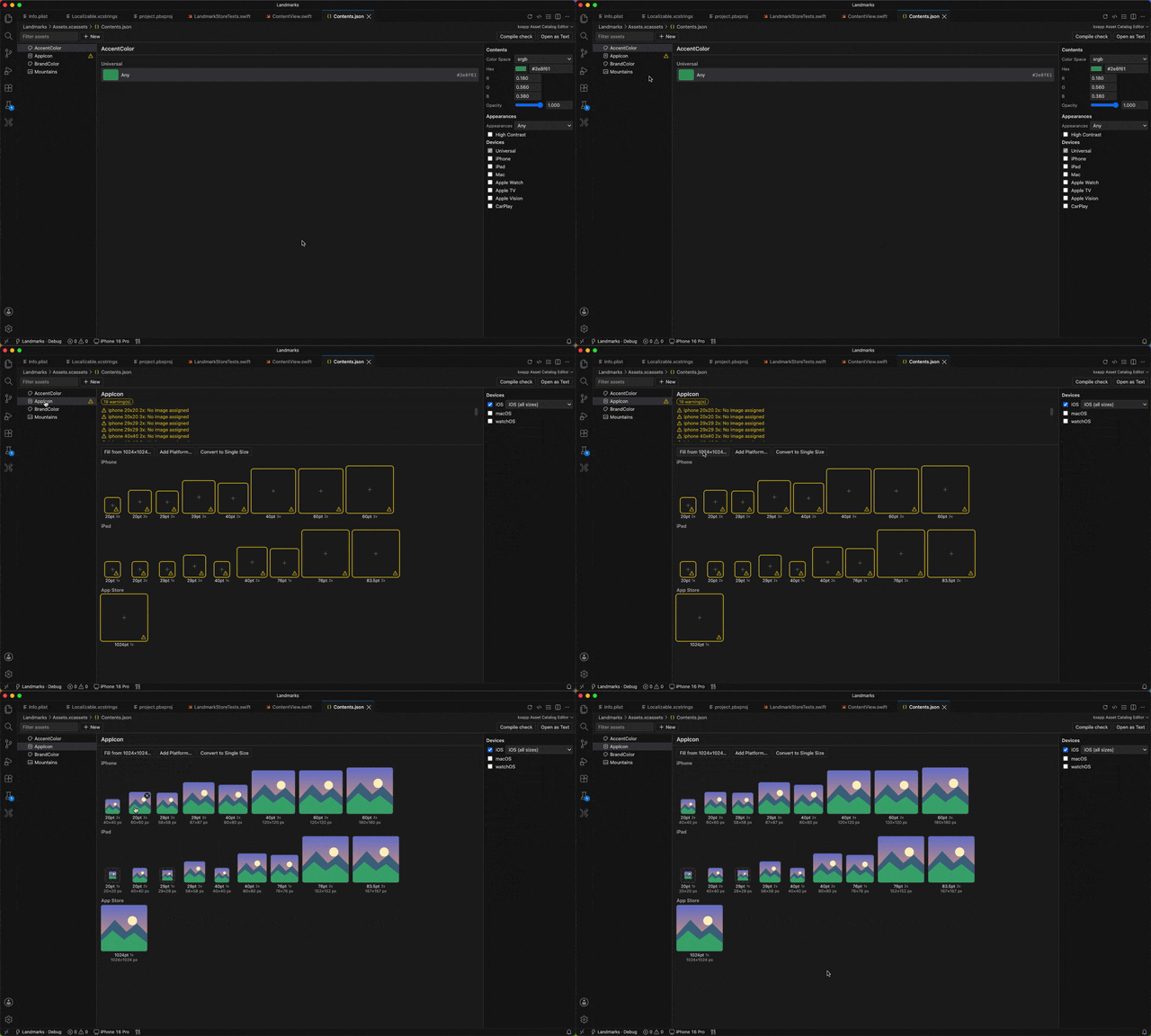
AppIconin the item tree. If there isn’t one, click + New › App Icon in the toolbar, or right-click an item to create it. - Choose Fill All Sizes from 1024×1024 Image….
- Pick a 1024×1024 pixel PNG. Every size slot is filled at once.
Apple sets the image rules: square, 1024×1024 pixels, no alpha channel for the App Store icon, and no rounded corners of your own because the system adds them. See App icons (Human Interface Guidelines).
Single-size icons vs. the old multi-size icons
Since Xcode 14, an iOS app icon can be a single 1024×1024 image, and Xcode generates the other sizes at build time. If an older project still has a grid of individual sizes, right-click and choose Convert to Single Size Icon. It has the same effect as setting Size to Single Size in Xcode.
Set the app icon without opening the asset catalog
In the Xcode project view, right-click an app target and choose kxapp: Set App Icon from Image…, then pick an image. The extension finds or creates the icon set using the target’s existing app icon name (AppIcon by default) and fills it in, without changing the target’s build settings. If the project has no asset catalog yet, one is created and added to the target. This is the quickest way to give a new project its first icon.
Icons for other platforms
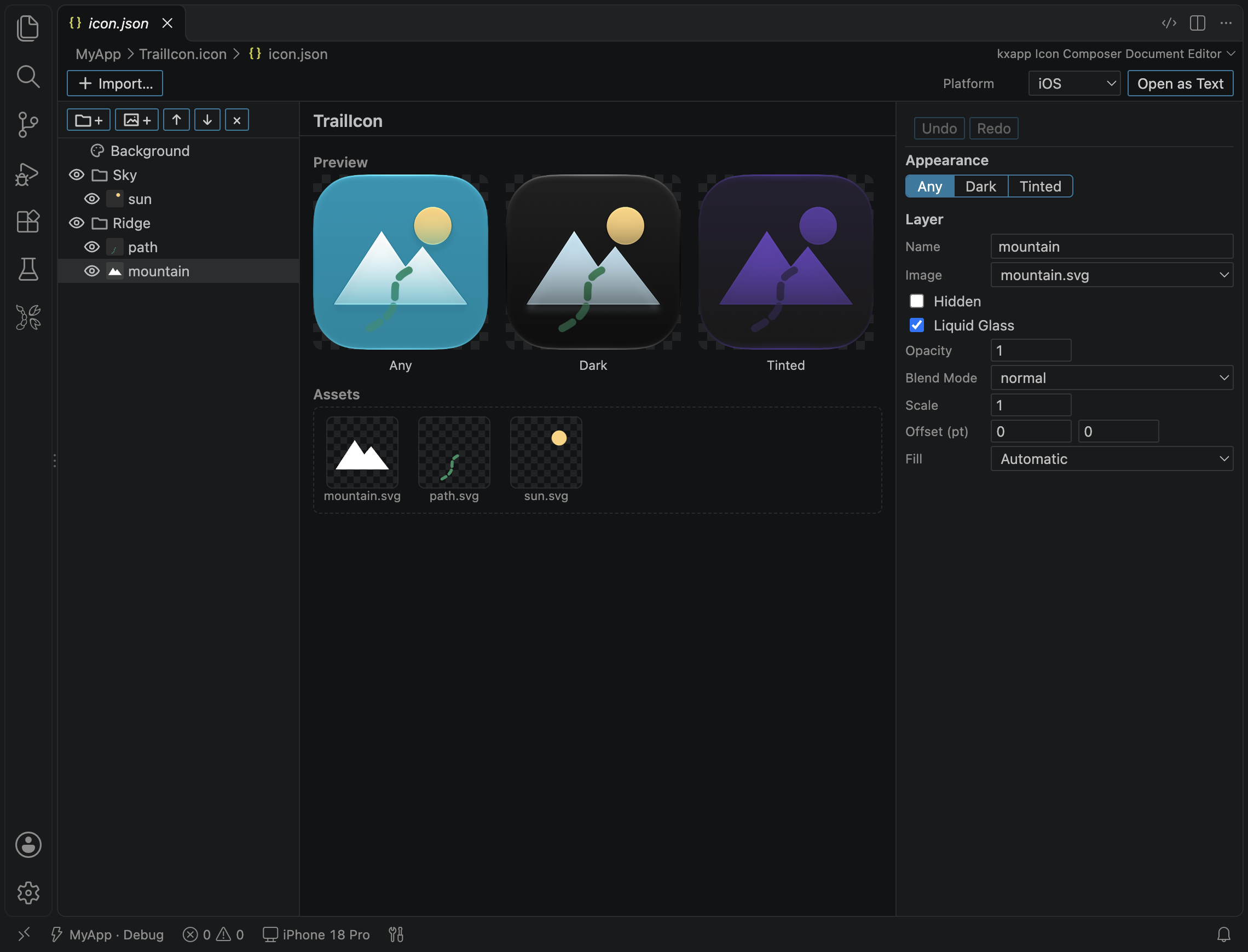
Right-click the app icon and choose Add Platform… to add iOS, iOS (all sizes), macOS, watchOS or watchOS (all sizes); the list only shows platforms you don’t have yet. There are also New App Icon (visionOS) and New App Icon & Top Shelf Image (tvOS). Icon Composer .icon documents open directly too: edit groups, layers and fills, and preview the default, dark and tinted appearances. See the visual editors guide.
How do @1x, @2x and @3x work in an image set?
- Right-click the item tree and choose New Image Set, then give it a name (your code loads the image by this name).
- Drag images into the matching slots. iPhones today mostly use @2x and @3x.
- To replace an image, drag a new one onto its slot or click the slot to choose again. To remove one, click the × on the slot.
| Slot | Used on | Example: a 44 pt icon |
|---|---|---|
| @1x | Rarely needed now | 44×44 pixels |
| @2x | Most iPhones and iPads | 88×88 pixels |
| @3x | High-resolution iPhones such as Plus and Pro Max | 132×132 pixels |
With a PDF or SVG vector image you can supply just one file: set Scales to Single Scale in the attributes panel on the right. Loading the image in code:
1Image("Logo")                 // SwiftUI
2UIImage(named: "Logo")        // UIKit
How do you add color sets and other items?
| Item | How to create it | What it’s for |
|---|---|---|
| Color set | Right-click › New Color Set | Named colors, with separate light and dark appearances; use Color("Brand") in code |
| Data set | Right-click › New Data Set | JSON and other data files, read with NSDataAsset |
| Symbol image set | Right-click › New Symbol Image Set | Custom symbols in the style of SF Symbols |
| Folder | Right-click › New Folder | Group and organize items |
If the project has no asset catalog yet, run kxapp: New Asset Catalog… from the Command Palette. The new catalog is added to the target’s resources phase automatically, so you don’t need to go back to Xcode to add it.
How do you catch missing app icon sizes before committing?
With the asset catalog editor open, click Compile check in the toolbar, or run kxapp: Compile-check Asset Catalog from the Command Palette (it only appears while the asset catalog editor is active). Choose a platform and the extension compiles the catalog with actool, listing problems in the Problems panel. You catch missing app icon sizes and wrong image formats early, instead of at build or upload time.
FAQ
Do I still need a dozen different app icon sizes?
No. Since Xcode 14, an iOS icon needs only one 1024×1024 image. When you do need every size, Fill All Sizes from 1024×1024 Image… generates them in one step.
I changed the icon, but the phone still shows the old one. Why?
iOS caches app icons. Delete the app from the phone or simulator, then press ⌘R to run it again. If it’s still wrong, use Clean Build Folder from the “…” menu in the Xcode project view and rebuild.
Why am I asked to install a component when creating a catalog or adding images?
Changing the project and adding resources requires the xcodeproj component. The extension offers a one-click install the first time it’s needed, or you can run gem install --user-install xcodeproj in Terminal.
Do assets edited in VS Code look different in Xcode?
No. The editor saves Xcode’s standard Contents.json format, so Xcode opens the catalog exactly the same way.