
iOS has two unit testing frameworks, XCTest and Swift Testing, and both run in VS Code: install the free KXApp extension, open your Xcode project, and your tests show up automatically in VS Code’s Test Explorer. Click a run button and the tests execute on the selected simulator or iPhone, results stream in live, and failures are marked on the exact line that failed. This guide covers finding tests, running them, reading failures and fixing tests that won’t run. Current as of October 2026, for Xcode 16 and later.
Before you start: Xcode is installed on your Mac, and the extension is installed in VS Code with your Xcode project open; see the quick start. The project needs a test target, and to run it, the target must be checked in the scheme’s Test action (set this in Xcode’s scheme editor › Test).
Where do iOS unit tests appear in VS Code?
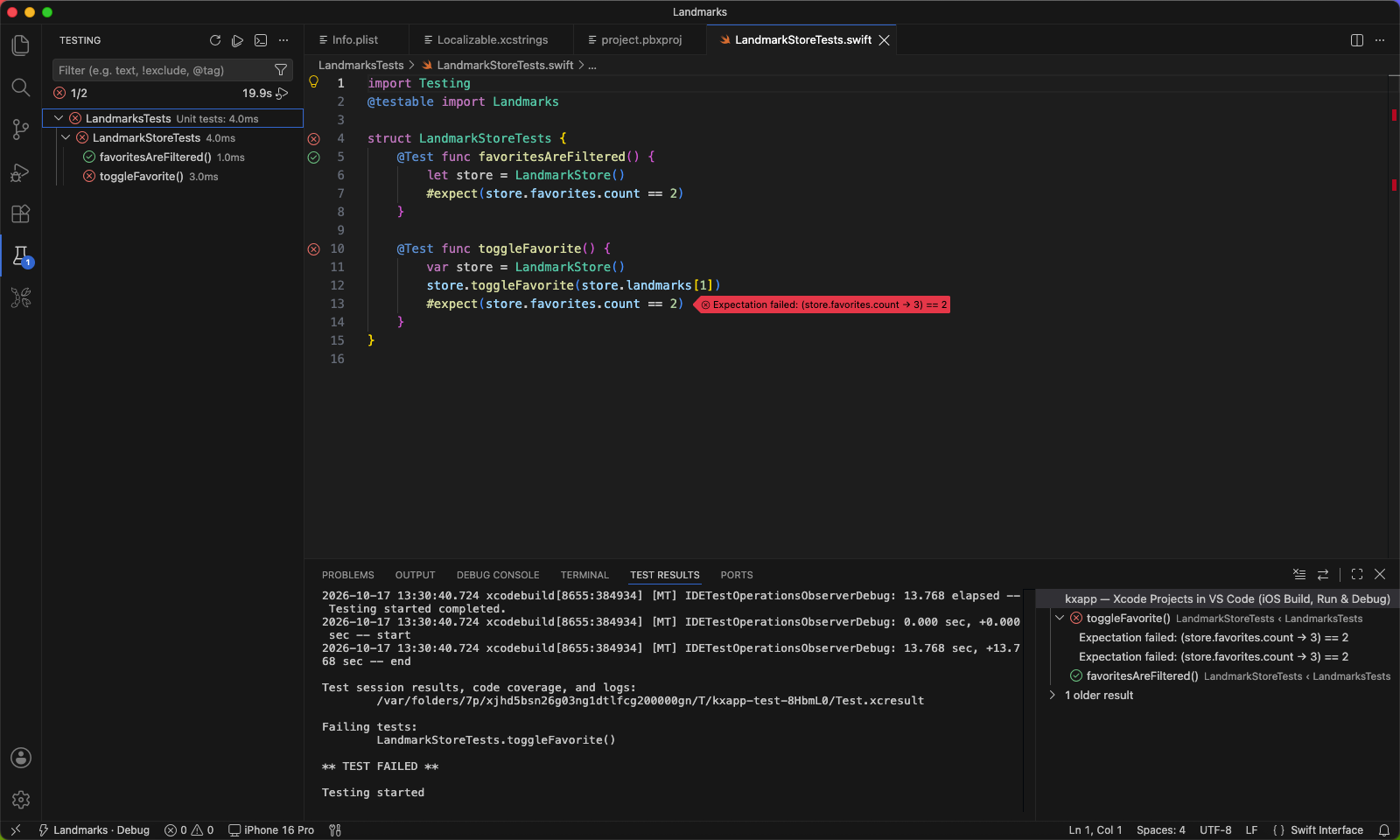
Click the beaker icon in the Activity Bar to open VS Code’s Test Explorer. Every test target in the project is listed (regardless of scheme), grouped by target › class › method, with targets shown by name, such as “HelloKXTests Unit tests”:
| Test type | How it appears in the list |
|---|---|
| XCTest unit tests | XCTestCase subclasses › methods whose names start with test |
| Swift Testing | @Test functions; tests with a display name show that name |
| UI tests | Classes and methods under the UI test target, just like unit tests |
When you open a test source file, each test method also gets a run button in the gutter next to its line number, which turns into a pass or fail icon after it runs.
How do you run XCTest and Swift Testing on a simulator or iPhone?
- Pick a run destination in the status bar: a simulator or a connected iPhone both work, and UI tests can run on a real device too.
- Click a run button in the Test Explorer:
- The button next to a method runs just that test.
- The button next to a class or target runs every test under it.
- The button at the top of the Test Explorer runs all tests.
- While tests run, each one shows started, passed or failed in real time.
Tests use the currently selected scheme, so before running, make sure the status bar shows a scheme that includes these test targets.
How do you see why a test failed?
- Failed tests are marked red in the Test Explorer, and the failing line in source shows the assertion message, for example
XCTAssertEqual failed: ("3") is not equal to ("4"), or for Swift Testing, a message likeExpectation failed: (Counter.next(1) → 2) == 3. The line where the test is defined is marked “Test failed.” - Click a failed test to jump to the failing line.
- Compile errors from building the test target go to the Problems panel, and the full xcodebuild output is in VS Code’s Test Results panel.
After fixing the code, click run again. Tests are rebuilt automatically before they run.
What if tests won’t run?
| Symptom | Fix |
|---|---|
| No tests in the Test Explorer | Make sure the open folder contains an .xcodeproj or .xcworkspace and the Xcode project view appears in the Activity Bar. The project needs a test target; then click the refresh button at the top of the Test Explorer |
| “The tests could not be built or started; see the test output for details.” | Usually the scheme has no Test action; the exact reason is in the xcodebuild output in the Test Results panel. Add the test target in Xcode’s scheme editor › Test, save, and return to VS Code |
| Tests won’t run on a real iPhone | Check the usual on-device requirements: unlocked, trusted, Developer Mode on, signing set up. See Run an iOS app on your iPhone |
| Build fails | Read the first error in the Problems panel. Whether ⌘U passes in Xcode with the same scheme tells you if the problem is in the project or in the extension |
| Results differ from Xcode | Use Clean Build Folder from the “…” menu in the Xcode project view’s title bar, then run again |
For more on unit tests in VS Code, see the testing guide; for other errors, see Troubleshooting.
FAQ
Can Swift Testing and XCTest live in the same project?
Yes. Both kinds of tests appear in the Test Explorer and run together.
Can UI tests run on a real iPhone?
Yes. Select a connected iPhone in the status bar and run the UI tests. The requirements are the same as running an app on a device: the phone is unlocked, trusts this Mac, has Developer Mode turned on, and the project can sign for it.
Why is the test list empty?
The test list shows every test target in the project, independent of the scheme. If it’s empty, check that the project has a test target, the test files are .swift, .m or .mm, and the test classes inherit from XCTestCase or use @Test, then click the refresh button at the top of the Test Explorer. The scheme only affects running: without a Test action, a run shows “The tests could not be built or started; see the test output for details.” and the reason from xcodebuild is in the Test Results panel.
Do I need to build manually before running tests?
No. Clicking run builds the test target first, then runs the tests.