
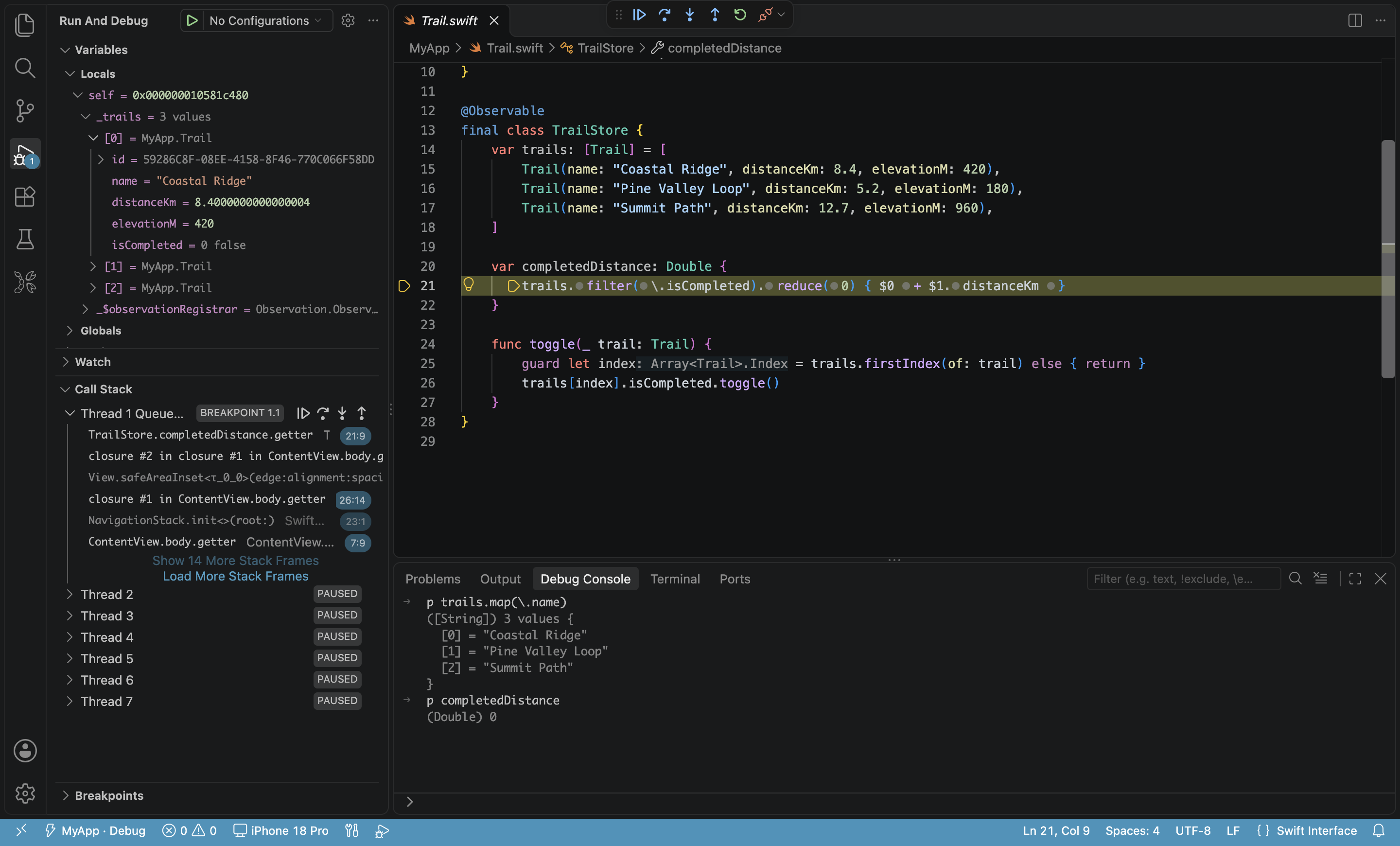
You can use VS Code and Xcode together, with the same iOS project open in both at once. With the free KXApp extension, VS Code works directly on your .xcodeproj / .xcworkspace with nothing converted or copied: both editors share the build cache, so a build in one means the other doesn’t recompile, and when you change a scheme or project setting in Xcode, VS Code refreshes on its own.
Day to day, write, run and debug code in VS Code, and switch to Xcode for Interface Builder, Instruments, or archiving and uploading. This guide covers what the two share, when to switch, and what to watch for with new files and version control. Current as of October 2026, for Xcode 16 and later.
Not sure yet what VS Code can do for iOS? Start with Can you use VS Code for iOS development?.
What is shared when you use VS Code and Xcode together?
| Item | Shared? | Notes |
|---|---|---|
| Project files (.xcodeproj / .xcworkspace) | Same files | VS Code doesn’t generate a project of its own, so teammates on Xcode are unaffected |
| Build cache | Shared | Build in VS Code and Xcode runs without starting from scratch, and the other way round |
| Code index | Shared | Jump to definition and find references use the same index |
| Schemes and build configurations | Same files | Create or edit a scheme in Xcode and the list in VS Code updates automatically |
| Selected scheme and run destination | Separate | VS Code remembers its own choice and doesn’t follow the Xcode toolbar |
| Project settings, Info.plist, asset catalogs | Same files | Save a change on either side and the other side reads the new content |
| Signing settings, Apple ID | Xcode’s | Sign in under Xcode Settings › Accounts; VS Code builds use that account |
When should you switch to Xcode on the same project?
| Task | Where |
|---|---|
| Writing code, code completion, navigation | VS Code |
| Build, run on the Simulator or an iPhone, breakpoint debugging | VS Code (⌘R) |
| Unit tests, UI tests | VS Code Test Explorer |
| Info.plist, app icons, localization, Build Settings | VS Code visual editors, or Xcode |
| Storyboard / XIB layout | Xcode Interface Builder |
| SwiftUI preview canvas | Xcode |
| Performance profiling (Time Profiler, Allocations, etc.) | Xcode Instruments |
| Archive, upload to the App Store / TestFlight | Xcode Product › Archive, Organizer |
| Edit a scheme (test targets, environment variables, etc.) | Xcode scheme editor |
You don’t need to close one to use the other. Finish in Xcode, come back to VS Code, and press ⌘R to carry on.
What happens if both edit the same file?
- Source code: both behave like ordinary text editors. Save on one side and the other picks up the new content from disk. If both have unsaved changes, whichever saves last wins, so avoid editing the same file in both at the same time.
- Info.plist and other property lists: a property list editor open in VS Code reloads automatically after Xcode saves the file.
- Project settings: change a target, scheme or Build Settings in Xcode and the Xcode Project view in VS Code refreshes automatically.
- Builds: don’t build the same project from both sides at once; let one build finish before you act in the other.
What should you watch for with new files?
KXApp doesn’t add new files to the project for you. Whether a new file gets compiled depends on how that directory is organized in the project:
| How the directory looks in Xcode | New files |
|---|---|
| Folder (the default for new projects since Xcode 16, blue folder icon) | Compiled automatically once placed in the folder, so just create them in VS Code |
| Group (common in older projects, yellow folder icon) | Must be added to the right target in Xcode before they compile |
The same rule applies to files generated by AI tools such as Claude Code or Copilot. In an older project you can convert a group to a folder in Xcode (right-click the group › Convert to Folder), and new files no longer need to be added by hand.
What should you watch for with Git?
- The first time the extension opens a project, it writes a
buildServer.jsonat the root of the opened folder; code completion relies on it. It contains machine-specific paths, so add it to.gitignore. - The extension doesn’t generate any other files in the project. The
.xcodeprojonly changes when you edit project settings or resources through the visual editors, and it’s written the way Xcode writes it, so the diff you commit looks the same as an Xcode edit. .vscode/launch.json(if you’ve written one) can be committed so the team shares debug configurations.
Follow these few conventions and using VS Code and Xcode together adds no extra file changes to the project, so everyone on the team can pick the editor they prefer.
FAQ
Does Xcode have to stay open?
No. Xcode needs to be installed and opened once; after that you can close the Xcode window while you build, run and debug in VS Code, and leaving it open is fine too.
Why doesn’t Xcode recompile after I built in VS Code?
Both use the same build cache. As long as the scheme, build configuration and run destination match, Xcode reuses the existing build results.
Do I have to reopen the project in VS Code after changing a scheme in Xcode?
No. The scheme list and the Xcode Project view refresh automatically, and VS Code keeps the scheme and run destination you selected there.
Will teammates on Xcode and VS Code get in each other’s way?
No. The project files are the same, and VS Code doesn’t generate or rewrite any extra project files; just add buildServer.json to .gitignore.
Related reading
- Can you use VS Code for iOS development? Completion, device debugging and Xcode compared
- Xcode code completion not working? Fix Swift completion in VS Code and Cursor
- Edit Info.plist, entitlements and privacy manifests visually in VS Code
- Build and run guide
- Xcode shortcuts cheat sheet: Xcode vs VS Code shortcut table