
iOS localization setup starts with a String Catalog (a file with the .xcstrings extension), the localization format Xcode has recommended since Xcode 15: one file holds every language’s translations, shows translation progress per language, and keeps plural and device-specific variations in the same place. With the free KXApp extension installed in VS Code, double-clicking an .xcstrings file opens it as a visual table. You can add languages, sync new strings from source code, translate them one by one and set up plurals, and the saved file matches what Xcode writes. Below is the workflow in the order you’ll use it. Current as of October 2026, for Xcode 16 and later.
Before you start: Xcode is installed on your Mac, the extension is installed in VS Code (see the install page), and you’ve opened a folder that contains an .xcodeproj or .xcworkspace.
What is a String Catalog, and how is it different from .strings?
| String Catalog (.xcstrings) | Legacy .strings / .stringsdict | |
|---|---|---|
| Number of files | One file per module, with every language inside | One .lproj folder per language, each with its own copy |
| How new strings arrive | Collected automatically from localization calls in code at build time | Keys added by hand |
| Plurals | Varied by plural inside the same string | A separate .stringsdict file |
| Translation progress | Completion percentage per language and a state for each string | None |
| Supported versions | Xcode 15 and later | All versions |
Strings you write as String(localized: "Welcome"), SwiftUI’s Text("Welcome") or Objective-C’s NSLocalizedString(@"Welcome", nil) are all collected into the String Catalog. Apple’s full explanation is in Localizing and varying text with a string catalog.
If your project has no String Catalog yet, create a Localizable.xcstrings in Xcode with File › New › File from Template… › String Catalog. From then on, all editing can happen in VS Code.
How do you open a String Catalog in VS Code?
Double-click Localizable.xcstrings in the Explorer and it opens in the kxapp Localization Editor. The Languages sidebar on the left has one row per language with a progress bar and percentage (for example, English en source 100%), and Add Language… at the bottom. The table on the right has Key, source language (such as English), Comment and State columns; select a language on the left and a column for its translations appears.
The top bar holds a Filter keys and values box, a state dropdown (All, Untranslated, Needs Review, Stale), and the Add Key and Sync with Source Code buttons, with the key count on the right. .strings and .stringsdict files inside .lproj folders open in the same editor.
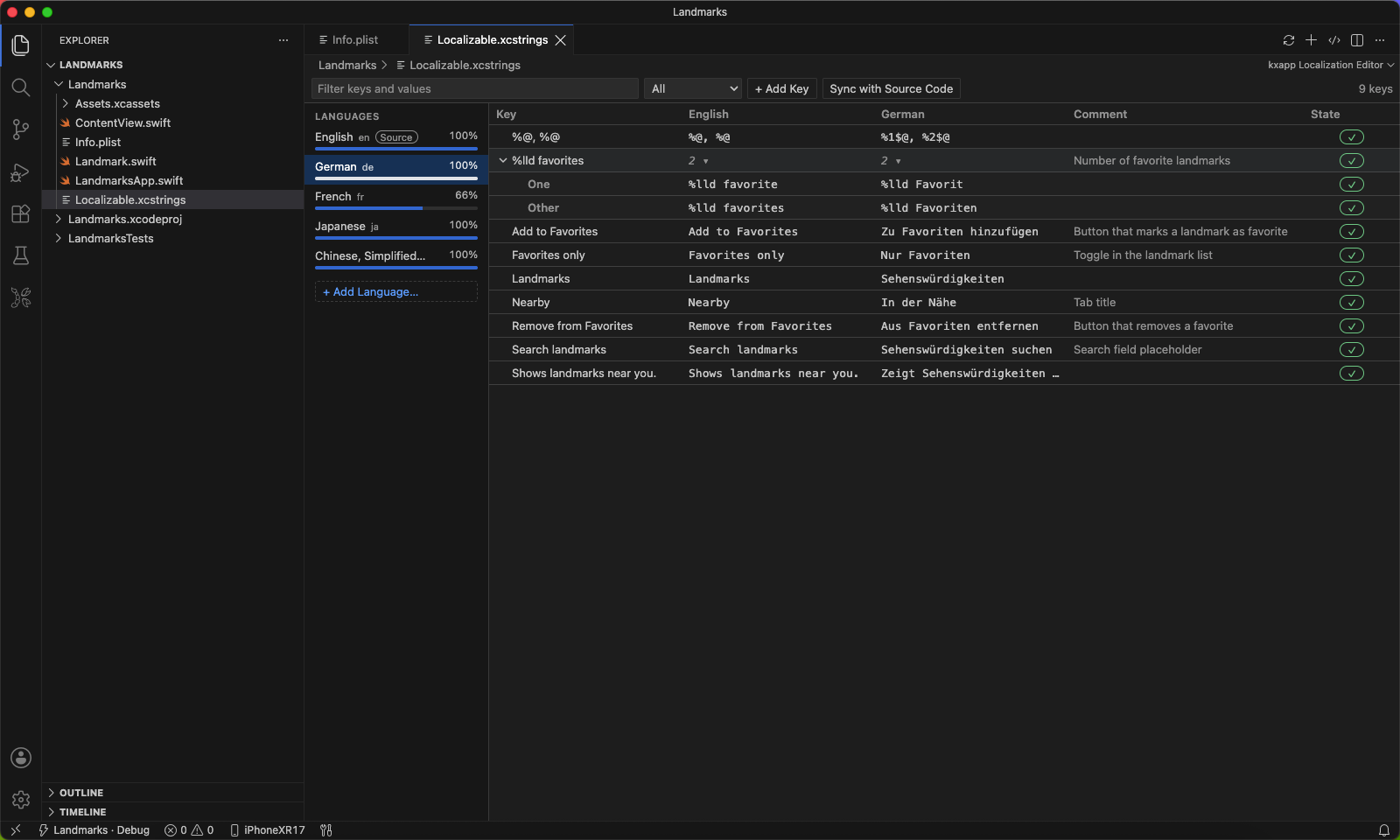
To see the raw JSON, click kxapp: Open Localization File as Text (the <> icon) in the editor title bar, or run it from the Command Palette. To switch back to the table, use kxapp: Open with Localization Editor.
How do you add a language for iOS localization?
- Open the
.xcstringsfile and click kxapp: Add Language… in the editor title bar or Add Language… at the bottom of the Languages sidebar. You can also right-click the.xcstringsfile in the Explorer. - Pick the language. The list shows each language’s English name with its code and native name in smaller text, for example Chinese, Simplified (zh-Hans · 简体中文). Type zh, Simplified and so on to search.
The new language appears in the Languages sidebar and is also registered in the project’s known languages (Project › Info › Localizations), just like adding a language in Xcode, so there’s no need to go back to Xcode for that. Writing to the project file requires the xcodeproj component; the extension offers a one-click install the first time it’s needed.
To drop a language, right-click it in the Languages sidebar and choose Remove Language…. The same menu has Set as Source Language to change the development language.
How do you sync new strings from source code?
After you add localized strings in code, click kxapp: Sync Strings with Source Code in the title bar:
- Keys that are new in code are added and wait for translation.
- Keys no longer used in code are marked Stale, not deleted. Remove them by hand once you’re sure they’re unused.
- Keys you added manually are left alone.
When the sync finishes, a notification in the lower-right corner shows the result, for example “Localizable.xcstrings: 2 added, 0 stale, 0 revived, 0 comments updated (N files scanned).”
Strings with interpolation deserve a second look. For Text("Tapped \(count) times"), Xcode extracts the key Tapped %lld times, and that’s the key looked up at run time. If the project has been built, the sync uses the most recent build to produce the same key Xcode would. Before the first build, the interpolated type is unknown, so the key is written as Tapped %arg times and the sync warns you. Build once with ⌘B and sync again, or change it by hand to the placeholder Xcode uses (%lld, %@ and so on).
If your project wraps localization in its own functions or macros (with the key as the first argument), add their names to the kxapp.l10n.extraMacros setting and the sync will scan them too. This is the equivalent of Xcode’s Localized String Macro Names.
Building in Xcode also collects new strings into the String Catalog automatically, and you can mix both approaches. Building with KXApp or on the command line (xcodebuild) does not update the String Catalog.
How do you translate strings and track review state?
Select a language on the left, type the translation into its column in the table, and save. Each string also supports:
| Action | When to use it |
|---|---|
| Mark for Review | You’re unsure of a translation and want someone to check it |
| Mark as Reviewed | The translation has been checked and is correct |
| Toggle Don’t Translate | Brand names, product names and other strings that stay the same |
| Add / delete / rename / duplicate key | Tidy up keys |
| Filter | Use the Filter keys and values box and the state dropdown to show only some keys, for example untranslated ones |
When you change a string’s source-language text, its existing translations are automatically marked Needs Review so translators know to check them again, the same as Xcode. To turn this off, disable the kxapp.l10n.markSourceEditsForReview setting.
How do you set up plural and device variations?
Text like “1 file / 3 files” needs singular and plural forms in English, and languages such as Russian and Arabic have even more. Here’s how:
- Right-click the string and choose Vary by Plural. The string must contain a number placeholder (such as
%lld), or you’ll get an error. - Each language shows rows for its own plural rules (for English, One and Other). Fill in each one.
Chinese has no singular/plural distinction, so usually only the Other row is needed.
When the same text should read differently on iPhone, iPad and Mac, you can edit device variations that were already created in Xcode. Choosing Vary by Device in the extension only creates a single Other row, and you can’t add iPhone, iPad or Mac rows from there.
When one string contains several counts (for example “3 files in 2 folders”), use Add Substitution to give each count its own plural rules. If you no longer need variations, Remove Variations turns it back into a plain string in the String Catalog.
FAQ
Can Xcode read translations I edited in VS Code?
Yes. The file is a standard .xcstrings file, so opening or building it in Xcode works the same, and your commit shows only the parts you changed.
Why don’t new strings from my code show up in the String Catalog?
Click kxapp: Sync Strings with Source Code in the editor title bar, or build once in Xcode. If you use custom localization functions, add their names to the kxapp.l10n.extraMacros setting first.
Does adding a language also update the project’s language list?
Yes. Adding a language registers it in the project’s known languages at the same time, so you don’t need to add it again in Xcode.
Can I edit an older project that uses .strings files?
Yes. .strings and .stringsdict files inside .lproj folders are edited in the same table as a String Catalog, with progress shown for each language. To migrate to a String Catalog, right-click the .strings file in Xcode and choose Migrate to String Catalog.
Do I need plural rules for Chinese?
Usually not, since Chinese doesn’t distinguish singular from plural. Only when the source language (English, for example) needs plural forms do you vary the string by plural, and then fill in just the Other row for Chinese.