
Xcode Build Settings are layered: the same setting can be written at the default level, in an xcconfig file, at the project level and at the target level, and the value that takes effect comes from the highest-priority layer. The key to reading them is the Levels view, which shows what each layer sets and what the final resolved value is, so you can see at a glance which layer overrides which.
With the free KXApp extension installed in VS Code, open your project settings and you get the same General and Build Settings pages as Xcode, including the Levels view, and you can edit values right there. This guide explains how inheritance works between levels, how to view and change settings in VS Code, and the dozen or so settings you’ll touch most. Current as of October 2026, for Xcode 16 and later.
Before you start: Xcode is installed on your Mac, the KXApp extension is installed in VS Code or Cursor (search for kxapp in the Extensions view, or see the install page), and your Xcode project folder is open.
How do Xcode Build Settings levels and inheritance work?
From highest to lowest priority:
| Level | Where it’s written | Notes |
|---|---|---|
| Target | This target’s settings in project.pbxproj |
Affects only this target; highest priority |
| Target xcconfig | The .xcconfig file the target points to |
Common when several targets or teammates share settings |
| Project | Project-level settings in project.pbxproj |
Applies to every target unless the target sets its own value |
| Project xcconfig | The .xcconfig file the project points to |
Shared project-level settings |
| Default (iOS Default) | Built into Xcode | Used when nothing else is set |
A level that doesn’t set a value inherits it from the level below; a level that sets one overrides it. Writing $(inherited) in a value means “append to the value from the level below”, which is common for list settings like OTHER_LDFLAGS and HEADER_SEARCH_PATHS. Every level can also hold different values per build configuration (Debug / Release).
For the full reference, see Apple’s Build settings reference.
How do I open Build Settings in VS Code?
Any of these three works:
- In the Xcode Project view, right-click the project and choose Edit Project Settings, or right-click a target and choose Edit Target Settings.
- Open
project.pbxprojin the Explorer; it opens in the project settings editor. - Run “kxapp: Project Settings…” from the Command Palette.
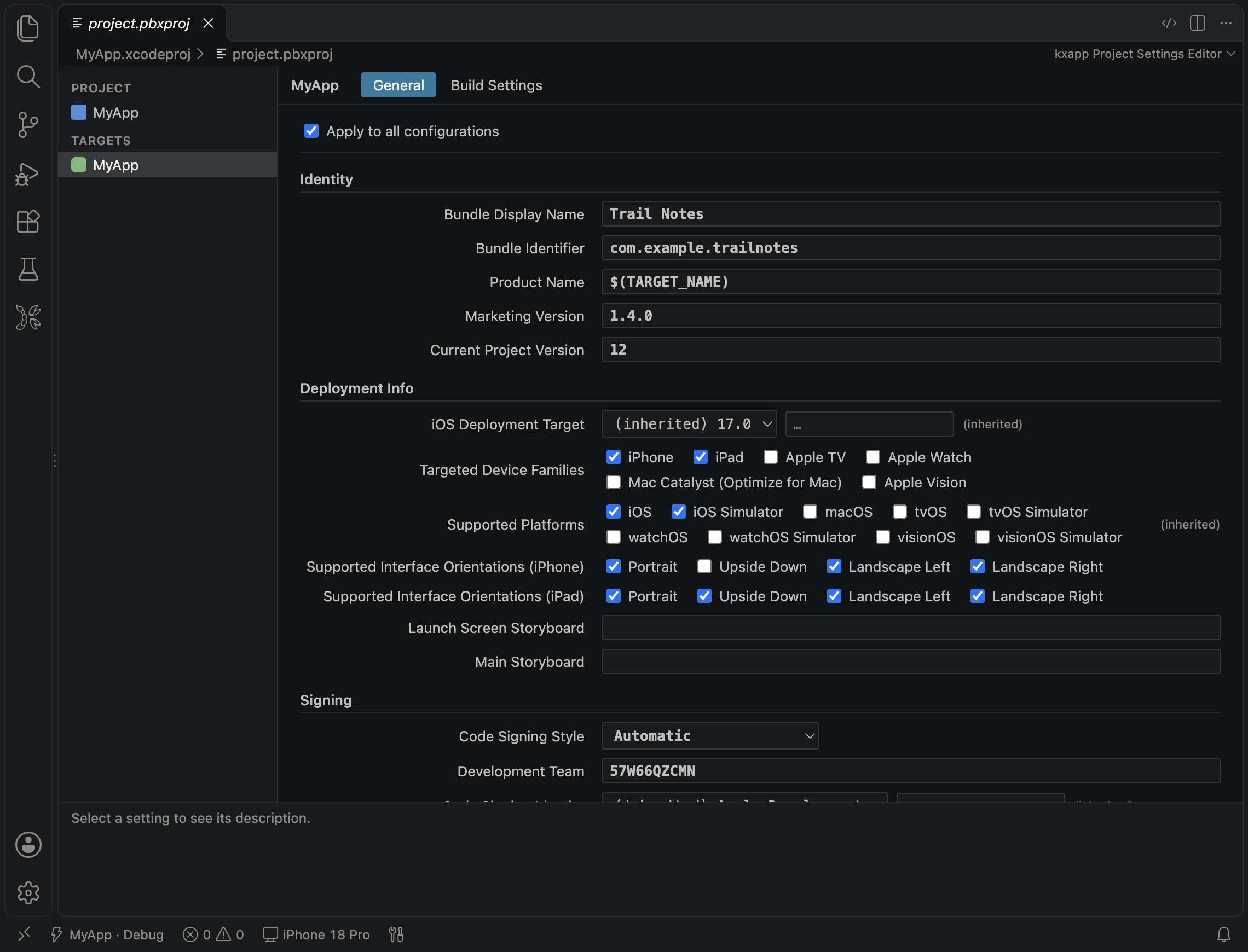
The editor has two pages, General and Build Settings. The General page holds the everyday items: identity, deployment info, signing and so on.
How do I find the effective value with the Levels view?
Switch to the Build Settings page, select the project or target in the Project and Targets columns on the left, then choose the Levels view. Each setting gets one row showing the final Resolved value plus the value at each level: target, target xcconfig, project, project xcconfig and default (for the project itself, only project xcconfig, project and default). You can see at a glance which levels set a value and which one wins.
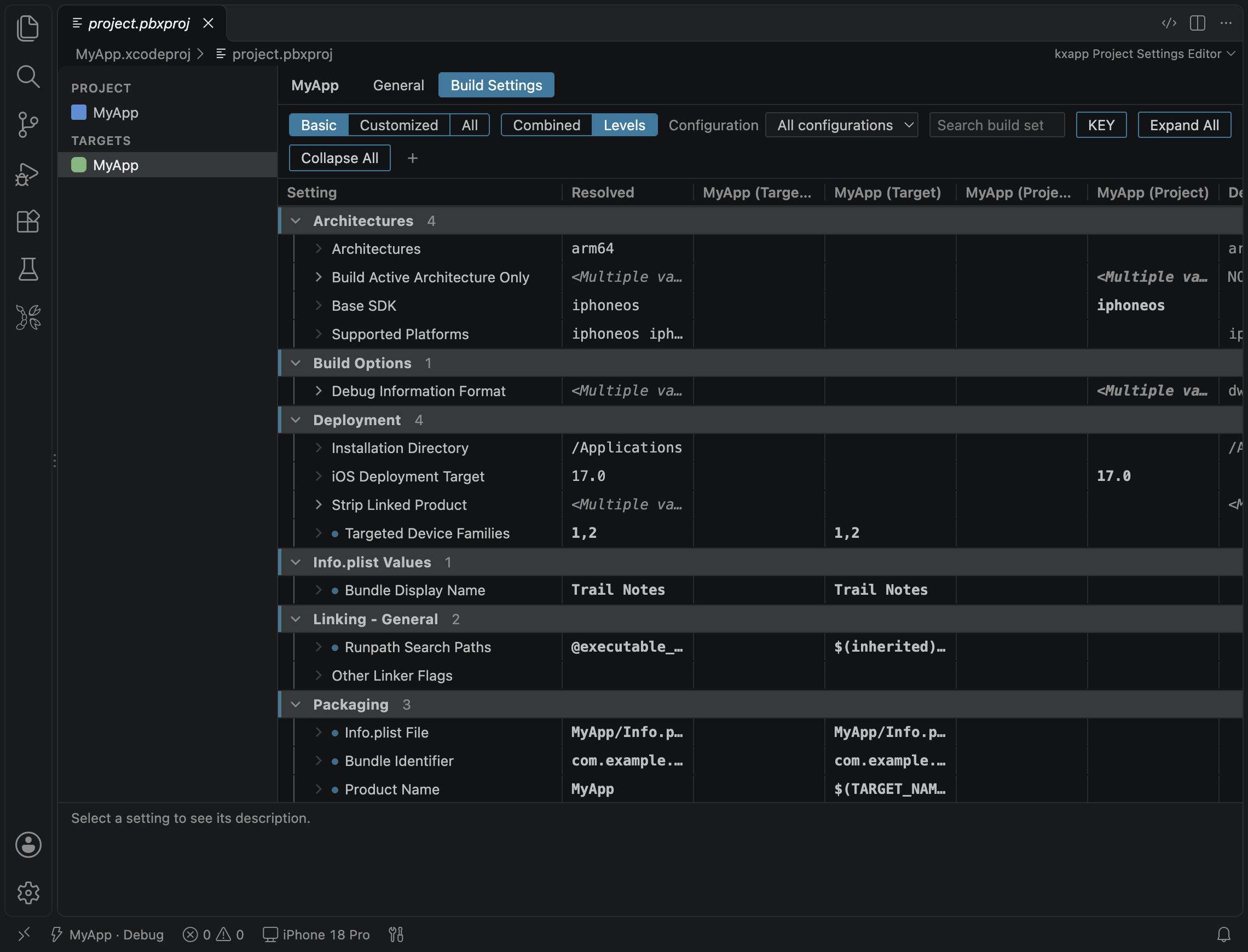
At the top are two button groups, plus a Configuration drop-down and a “Search build settings” box:
- Filter Basic / Customized / All: Basic shows common settings only, All shows everything, and Customized shows only the settings the current level (target or project) sets itself, the fastest way to answer “who changed this setting?”.
- View Combined / Levels: Combined shows just the final value for each setting (Setting and Resolved columns), like Xcode’s Combined view; Levels is the per-level view described above.
- The Configuration drop-down (All configurations / Debug / Release, shown when the project has more than one build configuration): use it when Debug and Release values differ.
How do I change Build Settings?
- Edit values directly; enum settings use a drop-down, just like in Xcode.
- You can change a single build configuration (say, Release only) or all configurations at once.
- Right-click and choose Add User-Defined Setting to add your own setting name, then reference it as
$(MY_SETTING)in code or Info.plist. - Right-click a value you don’t need and choose Delete Setting to fall back to the inherited value; Copy Setting Name and Copy Value make it easy to paste into docs or an xcconfig.
Saving changes only the settings you edited, so git diff shows exactly which lines changed.
Editing project settings requires the xcodeproj component. The first time you need it, the extension offers a one-click install, or you can run gem install --user-install xcodeproj in the terminal. If you manage Ruby with rbenv or rvm, put that Ruby’s path in the kxapp.rubyPath setting.
Which Xcode Build Settings do you use most?
| Setting name | Name in the UI | Meaning |
|---|---|---|
PRODUCT_BUNDLE_IDENTIFIER |
Product Bundle Identifier | Bundle ID, the app’s unique identifier; must match the provisioning profile |
PRODUCT_NAME |
Product Name | Product name; by default also the source of the app’s display name |
MARKETING_VERSION |
Marketing Version | Version number (e.g. 1.2.0), maps to CFBundleShortVersionString in Info.plist |
CURRENT_PROJECT_VERSION |
Current Project Version | Build number, maps to CFBundleVersion; must increase with every upload |
IPHONEOS_DEPLOYMENT_TARGET |
iOS Deployment Target | Minimum supported iOS version |
TARGETED_DEVICE_FAMILY |
Targeted Device Families | iPhone, iPad, or both |
CODE_SIGN_STYLE |
Code Signing Style | Automatic or Manual signing |
DEVELOPMENT_TEAM |
Development Team | Team ID used for signing |
CODE_SIGN_ENTITLEMENTS |
Code Signing Entitlements | Path to the entitlements file |
INFOPLIST_FILE |
Info.plist File | Path to the Info.plist file |
SWIFT_VERSION |
Swift Language Version | Swift language mode (e.g. 5, 6) |
SWIFT_ACTIVE_COMPILATION_CONDITIONS |
Active Compilation Conditions | Conditional compilation flags, such as DEBUG in Debug |
OTHER_LDFLAGS |
Other Linker Flags | Extra linker flags, such as -ObjC |
ENABLE_BITCODE and other legacy settings |
— | No longer used by current Xcode; safe to delete |
You can paste any setting name from this table into the “Search build settings” box and check its value at each level in the Levels view; for the rest of the Xcode Build Settings, Apple’s documentation linked above is the reference.
FAQ
I changed a setting, so why didn’t the build change?
First check in the Levels view whether the Resolved value is the one you set: most likely a higher level (such as the target) sets its own value and overrides yours. Once that’s right, use Clean Build Folder from the “…” menu in the Xcode Project view and build again.
Why do Debug and Release have different values?
Every level can hold separate values per build configuration. Use the Configuration drop-down on the Build Settings page to view each one, or choose All configurations when editing to keep them the same.
Will Xcode see settings I change in VS Code?
Yes. You’re editing the same project.pbxproj, in the same format Xcode writes, so it looks exactly the same when you open it in Xcode.
What should I do if saving fails with an error?
It’s almost always the missing xcodeproj component. If ruby -e 'require "xcodeproj"' fails in the terminal, run the extension command “Install the xcodeproj Ruby gem” or gem install --user-install xcodeproj; see Troubleshooting for details.